This walkthrough follows one project through QuotingHub, from a supplier price list to the client quote, the invoice, and the purchase orders sent to each supplier. Every screenshot comes from our demo studio. The client, suppliers and prices are made up, but the screens and documents are the real product. We also cover what QuotingHub does not do, and what differs between plans.
The example project
"Sandton Penthouse — Full FF&E" is a residential project with four rooms (living, dining, master bedroom and patio), 16 items from five suppliers, a 20% design fee, and a quote total of R616,811.70 including VAT.
Step 1: Load your supplier prices
QuotingHub starts with your suppliers' prices. Under Price Lists, click Import Price List and upload a CSV with brand, collection, design, colour, SKU and price columns (product ID and image URL are optional, and there is a template to download). You can also add, edit and delete individual items afterwards. This works on every plan and with any supplier.
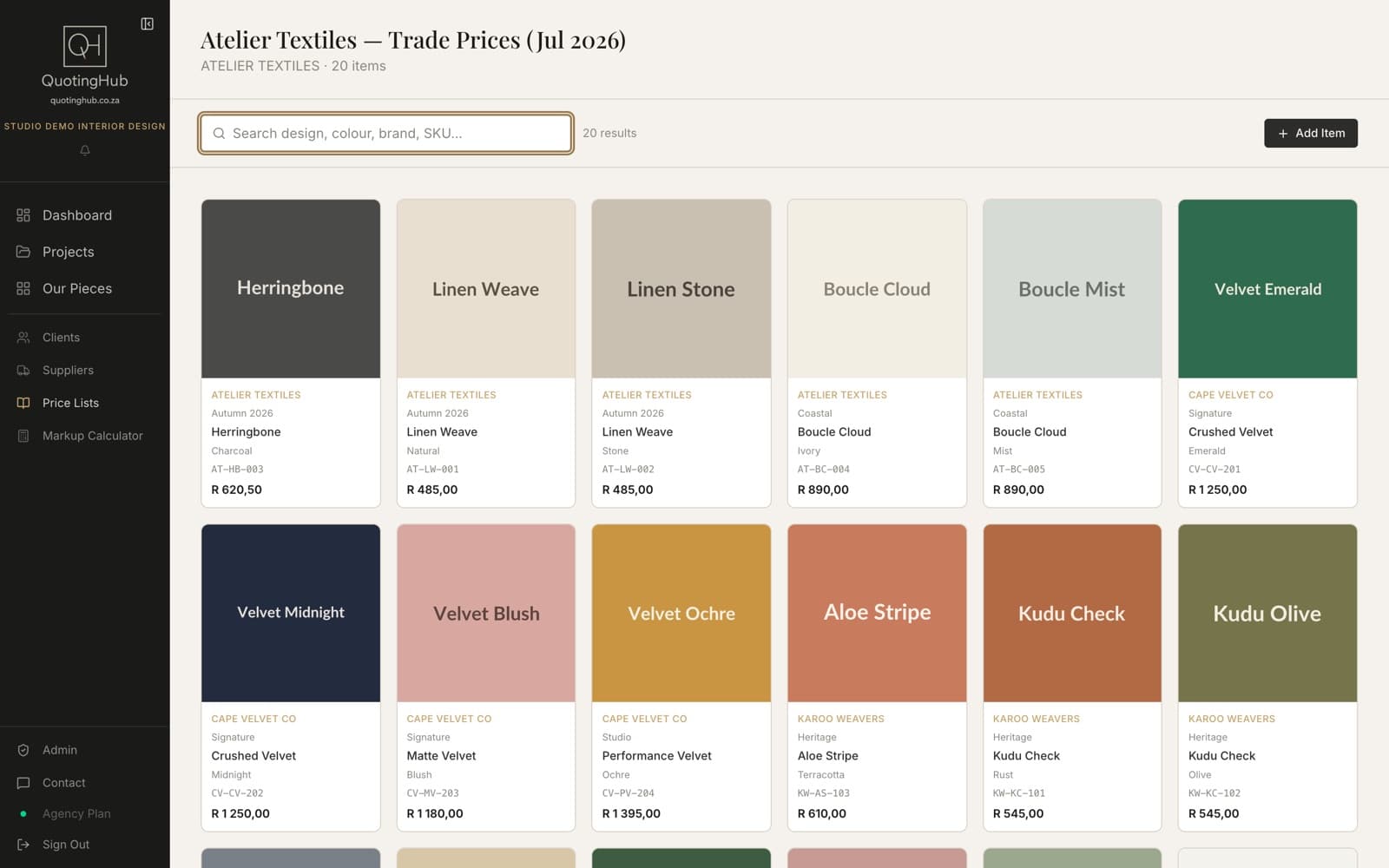
About catalogues: QuotingHub also maintains catalogues for a small number of South African suppliers. They are locked by default. Your studio requests access from inside the app and we approve it. For most suppliers, you import their price list yourself.
Step 2: Build the quote
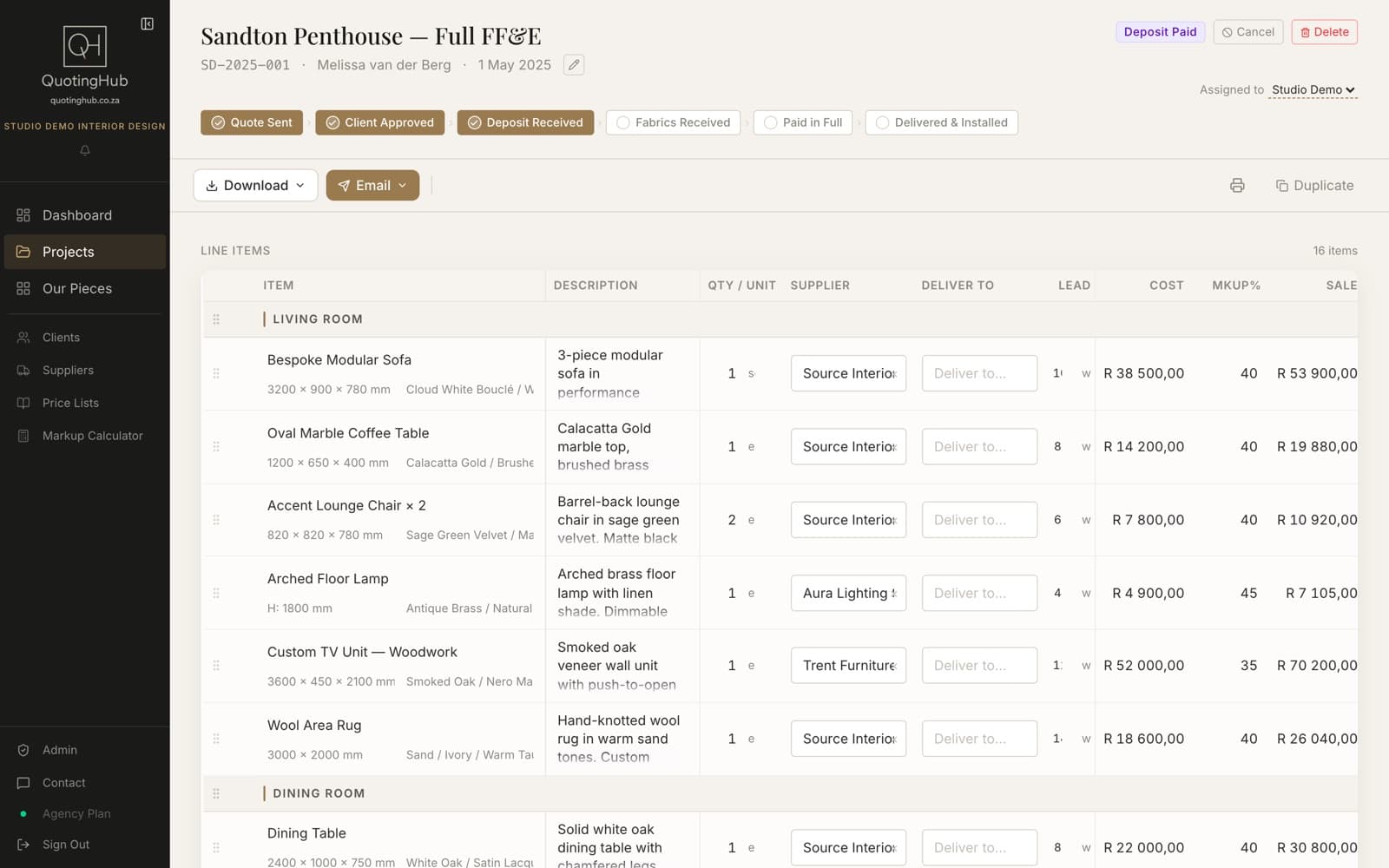
Create a project, choose the client, and add line items grouped by room. For each item you set the supplier, quantity and unit, dimensions, finish, delivery address and lead time. When you choose a supplier, its default markup is applied, and you can change it per line. QuotingHub works out the sale price from cost and markup.
If the supplier has a linked price list, the item field becomes a search. Type a design or SKU and pick the item, and its price comes onto the line. In the example, the outdoor lounge chair has its fabric (5 m) as a line underneath it, picked from a supplier catalogue.
How prices behave once they are on a quote:they stay fixed. QuotingHub does not reprice a quote by itself. When you re-import a price list, items you add from then on use the new prices, and lines already on a quote keep what you quoted. For items from the automatically synced catalogue, a line is flagged "Price updated" if the supplier's price has changed since you added it, so you can decide before sending.
Step 3: Send the quote to the client
Choose Download → Quote PDF to save it, or Email → Email to Clientto send it. The email attaches the PDF and includes Approve and Decline buttons. The client's response is logged on the project, alongside a history of every email sent.
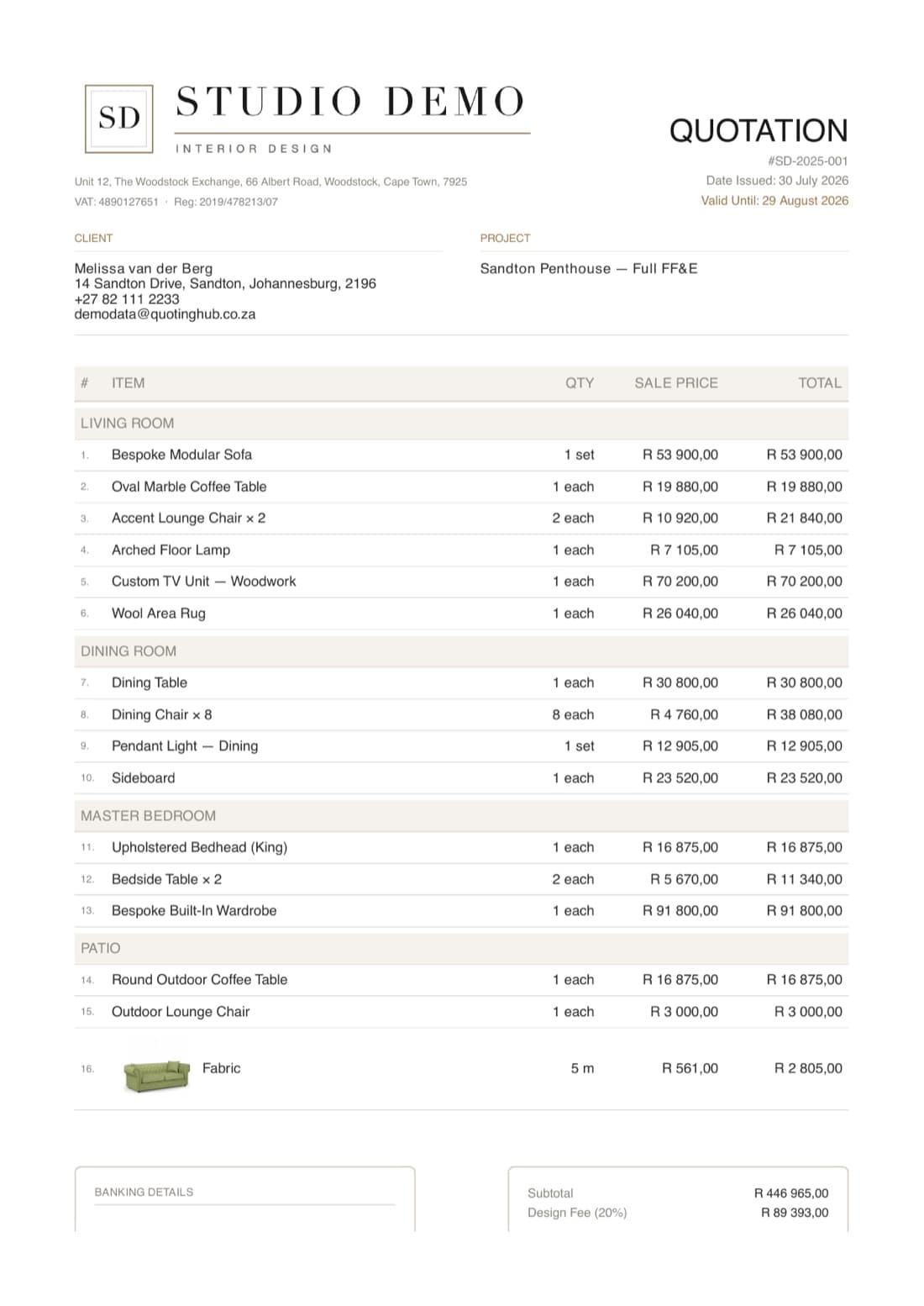
The second page carries the totals (subtotal, design fee, 15% VAT and the deposit due), your banking details, terms and conditions, payment terms and an acceptance block. The deposit percentage comes from your studio settings; this studio uses 60%.
Step 4: Invoice the client
Once the client approves, the same project produces the invoice: Download → Invoice PDF or Email → Email to Client. It uses the same line items and branding, so nothing is retyped. Mark Deposit Received and Paid in Full on the status steps as payments come in. On the Agency plan, invoices can also be pushed to Sage Business Cloud Accounting.
Step 5: Order from each supplier
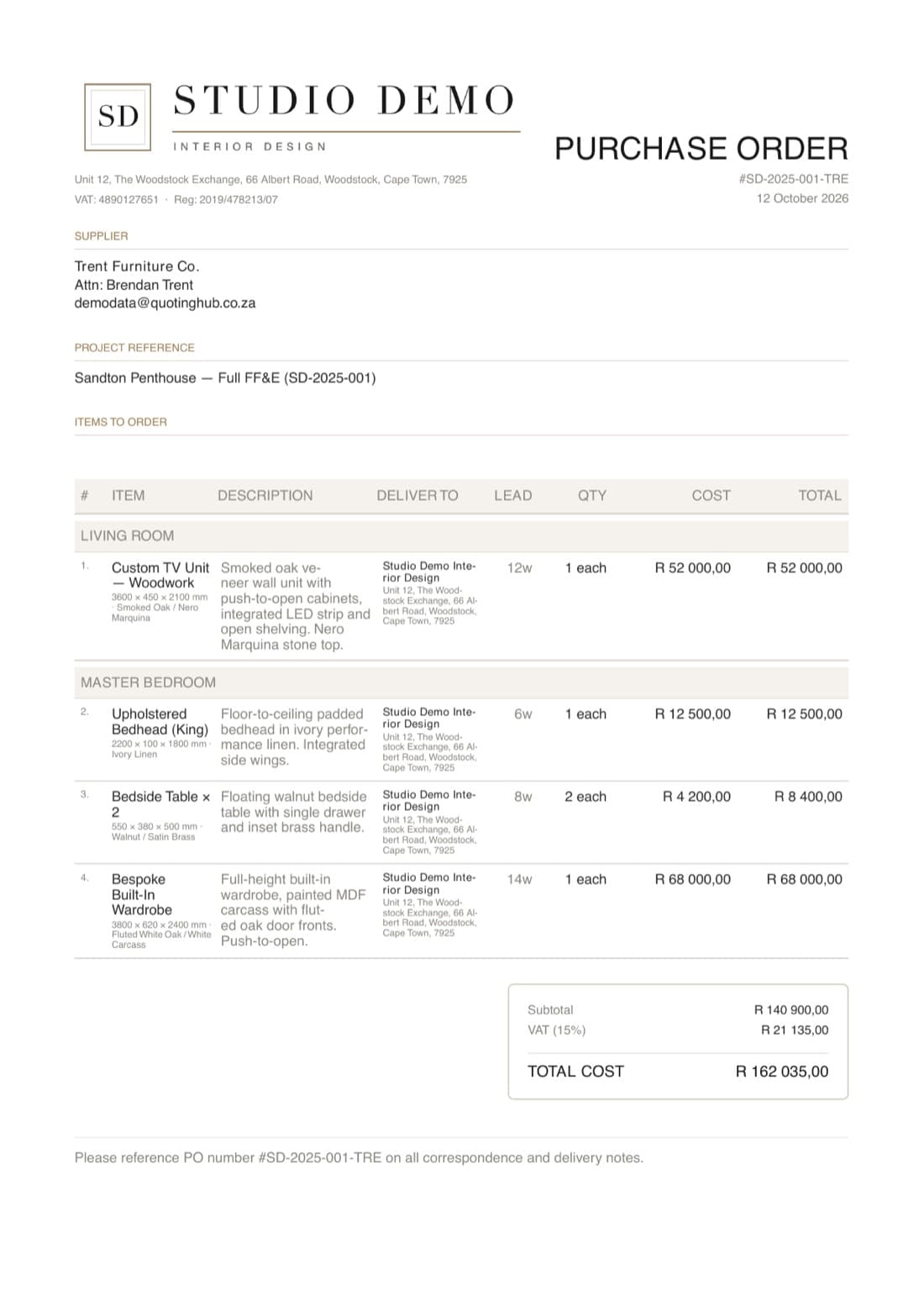
From the same project, QuotingHub generates one purchase order per supplier, containing only that supplier's items, at your cost price, with lead times and VAT. Download them, or use Email → Email to Suppliers to send each supplier their own order.
What QuotingHub does not do
- No live repricing. Prices change when you re-import a list or a catalogue is updated, and quotes already issued stay as quoted.
- No open catalogue of every brand. A small number of supplier catalogues are available on request; everything else comes from lists you import.
- No specification platform. There are no FF&E schedules, spec sheets or mood boards on the current plans. QuotingHub covers quoting, invoicing and ordering.
- Not accounting software. It produces invoices but does not keep your books. Sage integration is on the Agency plan only.
What differs between plans
Everything in this walkthrough (price lists, quotes, invoices, purchase orders and emailing) is on every plan, including Solo at R699/month. Studio (R1,499/month) adds up to five team members, the Job Cost Sheet, the markup calculator, bulk import tools, profit analytics and an audit log. Agency (R2,499/month) adds up to ten team members, the Sage integration and custom-branded PDFs. See pricing for the full list.
Try it on your own project.
Import one supplier price list and build your next quote in QuotingHub. Free for 30 days, no credit card required.
Start your free trial